
Hard Drive failure can be sudden, complete, gradual, or partial, and most of the time, data recovery is a possibility. If you also encountered a hard drive error like this, then don’t worry. We are here to help you with a complete guide on challenging drive problems and solutions that will help you solve all kinds of unwanted situations. Let’s start from the basics and gradually unravel the familiar challenging drive problems users face today.
Computer Hardware
Table of Contents
What is Hard Drive Failure?
Hard drive failure occurs when a computer’s storage device stops functioning properly and can no longer reliably read, write, or store data. This can lead to data loss, system crashes, slow performance, or a completely unbootable computer.
Hard drives can be traditional HDDs (Hard Disk Drives) or modern SSDs (Solid State Drives) — and both can fail, though for different reasons.
Types of Hard Drive Failure
| Type | Description | Common Causes |
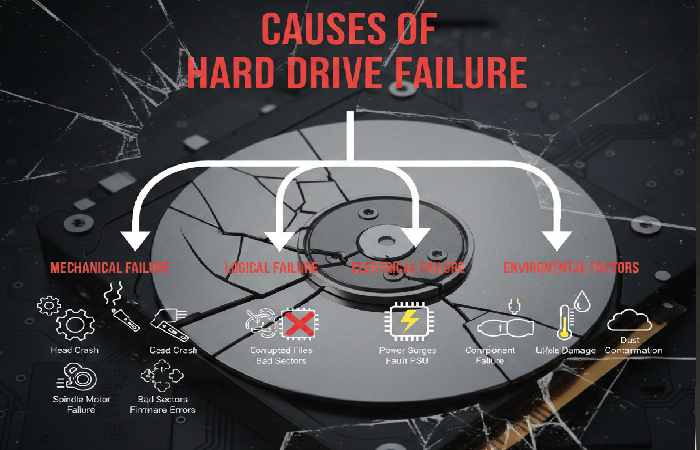
| Mechanical Failure (HDD) | Physical parts like spinning disks or read/write heads stop working | Wear & tear, drops, overheating |
| Logical Failure | Software corruption affects file system or data | Malware, improper shutdown, corrupted OS |
| Electronic Failure | Circuit board damage | Power surge, short circuit |
| Firmware Failure | Internal drive software malfunction | Firmware bugs or update issues |
| SSD Wear-Out | Flash memory cells degrade over time | High write cycles |
How to Check Hard Drive Health
Checking your hard drive (HDD/SSD) health regularly is important to prevent data loss. Below are easy, step-by-step methods for Windows, macOS, and general use, explained in simple language.
Check Hard Drive Health in Windows (Built-in Methods)
Method 1: Using CMD (SMART Status – Fastest Way)
- Press Windows + R
- Type cmd → press Enter
- Run this command:
wmic diskdrive get status
Result Meaning:
- OK → Drive is healthy
- Pred Fail → Drive may fail soon (backup immediately!)
Method 2: Check Errors Using File Explorer
- Open This PC
- Right-click your drive (C:, D:)
- Select Properties
- Go to Tools tab
- Click Check under Error checking
This scans for file system errors.
Use Free Hard Drive Health Software (Recommended)
Best Free Tools
| Tool Name | Best For | Works On |
| CrystalDiskInfo | Easy SMART health report | Windows |
| Hard Disk Sentinel | Advanced monitoring | Windows |
| Samsung Magician | Samsung SSDs only | Windows |
| WD Dashboard | Western Digital drives | Windows |
Tip: CrystalDiskInfo shows health as Good / Caution / Bad with temperature and usage hours.
Check Hard Drive Health on macOS
Method 1: Disk Utility
- Open Finder → Applications → Utilities
- Open Disk Utility
- Select your drive
- Check SMART Status
- Verified → Healthy
- Failing → Backup immediately
Method 2: Terminal Command (Advanced)
Open Terminal and type:
diskutil info disk0 | grep SMART
Check Hard Drive Health Using BIOS/UEFI
- Restart your computer
- Press F2 / Delete / Esc (depends on brand)
- Look for Storage / HDD Health / SMART Status
This works even if your OS won’t boot.
Warning Signs Your Hard Drive Is Failing
| Symptom | Meaning |
| Slow boot or freezes | Drive aging |
| Clicking or grinding noise | Mechanical failure (HDD) |
| Frequent crashes | Bad sectors |
| Files disappearing | Corruption |
| SMART “Caution” | Replace soon |
HDD vs SSD Health Check Differences
| Feature | HDD | SSD |
| Noise issues | Yes | No |
| SMART wear data | Limited | Very detailed |
| Lifespan indicator | Mechanical | TBW (Total Bytes Written) |
| Failure style | Gradual | Sudden |
Causes of Hard Drive Failure
Tips to Prevent Hard Drive Failure
You must follow the following care, both physical and in the System, so the hard drive is in good condition and lasts longer.
| Prevention Tip | Action to Take | Why It Helps | Resource Link |
| Regular Backups | Back up files to cloud & external storage regularly | Protects data if drive fails | https://www.backblaze.com/blog/how-to-backup-your-computer/ |
| Use Surge Protectors / UPS | Connect systems to surge protectors or UPS | Prevents damage from power spikes | https://www.fcc.gov/consumers/guides/surge-protectors |
| Keep System Cool | Ensure good airflow & clean dust from vents | Reduces overheating, major failure cause | https://www.howtogeek.com/397558/how-to-keep-your-computer-from-overheating/ |
| Avoid Physical Shock | Don’t drop or move drives while running | Prevents mechanical damage | https://www.pcworld.com/article/217208/how-to-protect-your-laptop-from-drops-and-shocks.html |
| Monitor Drive Health (SMART) | Use SMART monitoring tools to check drive status | Detects early failure signs | https://www.howtogeek.com/167769/how-to-monitor-your-hard-drive’s-health-to-predict-failure/ |
| Proper Shutdowns | Always shut down properly, avoid force power offs | Prevents file system corruption | 0000https://support.microsoft.com/windows/properly-shut-down-a-device-in-windows-10/ |
| Antivirus / Antimalware | Install updated antivirus and scan regularly | Prevents malware causing corruption | https://www.av-test.org/en/antivirus/home/ |
| Keep Firmware/Drivers Updated | Install drive firmware & OS updates | Fixes bugs, improves stability | https://www.intel.com/content/www/us/en/support/articles/000007147/technologies.html |
| Avoid Excessive Write Cycles (SSD) | Limit unnecessary writes on SSDs | Extends flash memory life | https://www.crucial.com/articles/about-ssd/ssd-lifecycle-and-write-endurance |
| Free Up Disk Space | Maintain at least ~15-20% free space | Improves performance & reduces failure risk | https://support.microsoft.com/windows/how-to-free-up-disk-space-in-windows-10-a5a383ae-f26f-942b-a672-96f49c21f8fc |
| Replace Aging Drives | Plan to replace drives every ~3-5 years | Older drives more prone to failure | https://www.backblaze.com/blog/hard-drive-stats-2025/ |
What 400,000 Hard Drives Tell Us About Failure: A Data-Driven Analysis
Large datasets from data centers monitoring over 400,000 hard drives reveal clear trends about when and why drives fail. These insights are crucial for both personal users and businesses.
Key Findings from Large-Scale Drive Data
| Insight | What It Means |
| First 18 months | Higher early failure rate (“infant mortality”) |
| 2–4 years | Most stable operating period |
| 5+ years | Rapid failure increase |
| Heat | Temperatures above 50°C increase risk |
| Usage | Constant read/write loads shorten lifespan |
Annual Failure Rate (AFR) by Drive Age
| Drive Age | Failure Risk |
| < 1 year | Medium |
| 1–3 years | Low |
| 3–5 years | Moderate |
| 5+ years | High |
Hard drives don’t fail randomly. Age, temperature, and workload play the biggest roles. Preventive replacement after 4–5 years significantly reduces data loss risk.
Hard Drive Failure Windows 10
| Category | Details in Windows 10 | What It Means / Action |
Common Error Message |
“Scanning and repairing drive” | Windows detected file system issues at startup |
| “SMART Hard Disk Error” | Drive health warning – backup immediately | |
| “Boot Device Not Found” | Windows cannot detect the drive | |
| Blue Screen (CRITICAL_PROCESS_DIED, INACCESSIBLE_BOOT_DEVICE) | Possible drive corruption or failure | |
Warning Signs |
Slow performance | Bad sectors or failing hardware |
| Frequent freezing/crashing | Possible disk read/write errors | |
| Clicking or grinding noises (HDD) | Mechanical failure | |
| Files missing or corrupted | Logical failure or bad sectors | |
Built-in Diagnostic Tools |
CHKDSK (chkdsk /f /r) | Scans and repairs disk errors |
| Error Checking Tool (Drive Properties → Tools) | Basic disk scan via GUI | |
| Windows Memory Diagnostic | Rules out RAM issues | |
| Event Viewer | Check disk-related error logs | |
| WMIC SMART Status (wmic diskdrive get status) | Shows drive health status | |
Causes in Windows 10 |
Improper shutdown | File system corruption |
| Power outages | Damaged system files | |
| Malware/ransomware | Logical drive corruption | |
| Aging hardware | Natural wear and tear | |
| Bad sectors | Physical disk surface damage | |
Quick Fix Steps |
Run CHKDSK | Repairs logical errors |
| Run SFC (sfc /scannow) | Repairs corrupted system files | |
| Update disk drivers | Fix compatibility issues | |
| Backup data immediately | Prevent data loss | |
| Replace drive if SMART shows failure | Hardware replacement required | |
When to Replace the Drive |
SMART status = “Pred Fail” | Drive is near failure |
| Repeated bad sector warnings | Disk deterioration | |
| System won’t boot repeatedly | Hardware likely failing |
How to Improve Hard Drive Performance?
Storage performance is only one part of the overall system experience. Your processor also plays an important role in everyday computing, so choosing the right Intel CPU can help balance storage, processing, and application performance.
We recommend that you consider the following techniques to improve the performance of the Hard Drive. Again, we emphasize that these techniques add to the Defragmentation we explained above.
- Set the “high performance” power option in Windows.
- Remove programs that open at startup.
- Review and uninstall programs you don’t use.
- Check if you already have all Windows updates. This way, the system will work faster.
- Check the temperature of the Hard Disk and if it fails.
For users who work with demanding games, video editing, or graphics-intensive applications, storage should also be considered alongside other hardware components. Exploring the top graphics cards can help when building or upgrading a performance-focused PC.
How to Use SMART Data to Predict Hard Drive Failure
SMART (Self-Monitoring, Analysis, and Reporting Technology) tracks internal drive health metrics and can warn you before failure occurs.
Most Important SMART Attributes
| SMART Attribute | Warning Sign | Meaning |
| Reallocated Sectors | > 0 | Physical damage |
| Pending Sectors | Increasing | Unstable disk areas |
| Uncorrectable Errors | Any value | Data loss risk |
| Power-On Hours | > 40,000 | Aging drive |
| Temperature | > 50°C | Overheating |
SMART Status Interpretation
| Status | Action Needed |
| Good | Normal operation |
| Caution | Backup data |
| Bad | Replace immediately |
Best Tools to Read SMART Data
| Tool | Platform | Difficulty |
| CrystalDiskInfo | Windows | Easy |
| Hard Disk Sentinel | Windows | Advanced |
| smartctl | Linux/macOS | Technical |
Tip: SMART data doesn’t predict every failure, but it successfully flags 60–70% of impending issues.
DIY Data Recovery: A Step-by-Step Guide to Salvaging Your Files
If you are dealing with an external storage device that has stopped working or become inaccessible, learn more about how to recover data from an external drive before attempting more advanced recovery methods.
If your drive shows warning signs, act fast. DIY recovery works only for logical failures, not physical damage.
Step-by-Step DIY Recovery Process
| Step | Action |
| 1 | Stop using the drive |
| 2 | Check SMART health |
| 3 | Clone the disk (sector-by-sector) |
| 4 | Recover files from the clone |
| 5 | Replace the original drive |
Recommended Free & Paid Tools
| Tool | Type | Best For |
| Recuva | Free | Deleted files |
| TestDisk | Free | Partition recovery |
| PhotoRec | Free | Media files |
| EaseUS | Paid | Easy full recovery |
| R-Studio | Paid | Advanced cases |
When DIY Recovery Will NOT Work
| Situation | Reason |
| Clicking sounds | Mechanical failure |
| Drive not detected | Controller damage |
| Burnt smell | PCB damage |
| SSD not recognized | Firmware failure |
In these cases, professional recovery is the only safe option.
Hard Drive Review
As its word implies, a hard drive will not necessarily last forever. However, every electronic device will have its useful life, and for this reason, at some point, it will have to be changed and replaced with another.
You should keep in mind if the computer is working slower. It represents one of the most frequent symptoms of a computer with errors or whose hard drive is not working correctly.
With the current status of the hard disk, it is possible to perform the following actions:
Hard Disk Temperature: Some programs allow us to observe the temperature of the computer and the hard disk. We recommend having one of these programs to prevent overheating of our equipment. Avoid high temperatures in any part of the equipment, especially the hard drive. This symptom is enemy number one for the hard drive.
Perform error checking beforehand: The System allows you to perform a scan to verify the status of the Hard Drive and possible errors. We recommend you do it ahead using the different tools that Windows offers us or look for programs that you can install on your computer to check the status of the Hard Disk. In this way, you will learn to monitor the Hard Drive constantly and generate alerts. If you get any error, you should make a backup immediately.
Conclusion
With a bit of care, you can prevent your external hard drive from crashing. But, of course, you don’t want to lose all your pictures, videos, documents, and other system files stored on the external drive. So, be proactive, look for any signs of it failure, and implement these simple methods to prevent your external HDD from failing.