
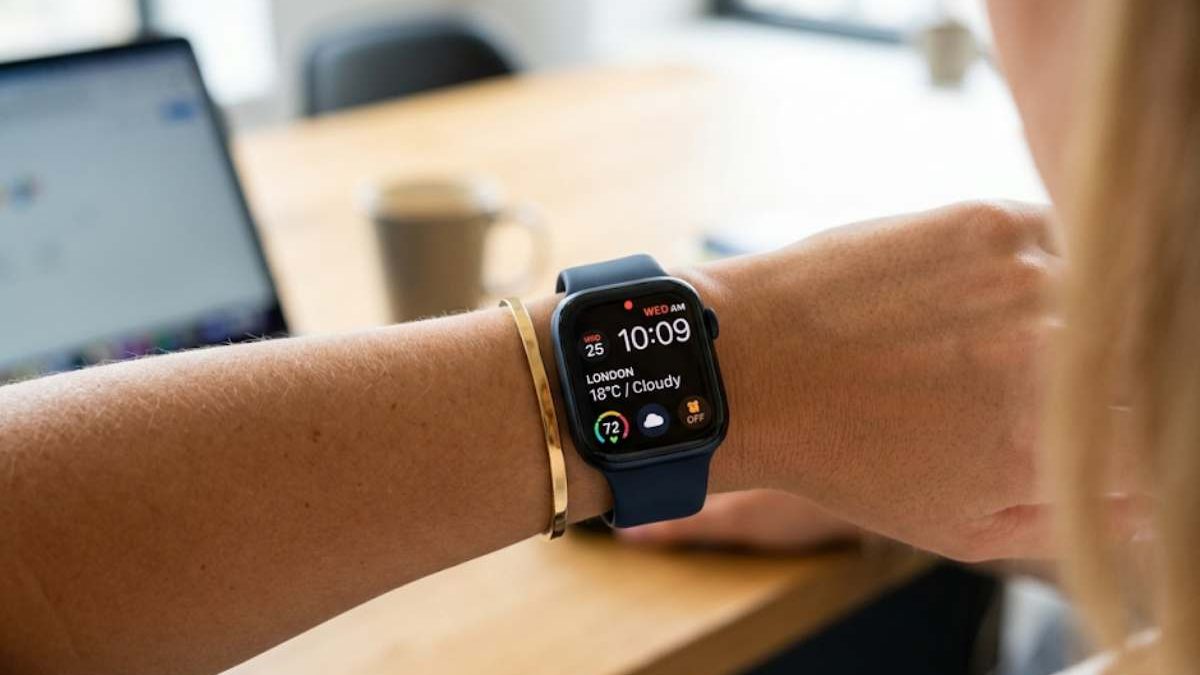
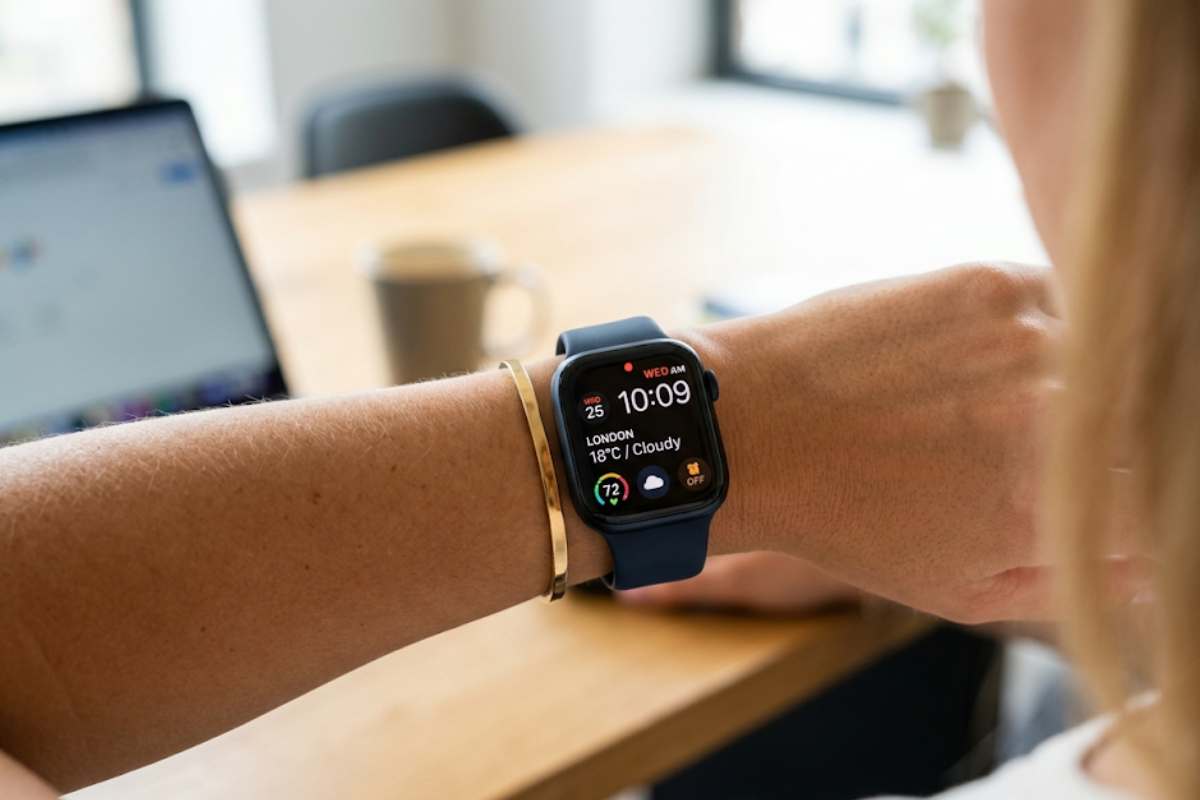
The red dot at the top of your Apple Watch screen means you have unread notifications. It’s Apple’s way of gently nudging you so you don’t miss alerts like messages, calls, app notifications, or reminders.
I’ve only owned a Red Dot Apple Watch for about a month, but it’s already shown to be helpful. Notifications, fitness tracking (which I never use, but the Apple Watch makes being active a lot more enjoyable), making and receiving calls—all it’s there. I’m using WhatsApp on my Apple Watch right now. However, other parts of watchOS 6, like specific symbols and iconography, might be unpleasant. Consider the tiny red dot at the top of the screen.
Wearable Technology
Table of Contents
What Is the Red Dot on My Apple Watch?
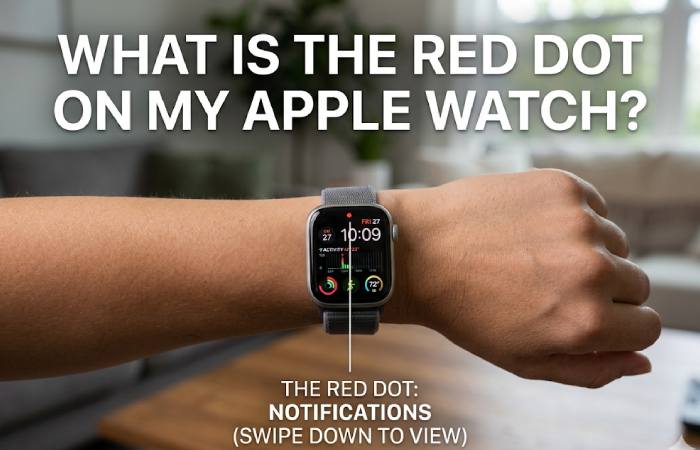
The term red dot on Apple Watch refers to an alert indicator which displays on the Apple Watch when you have notifications on your iPhone. Although the dot is quite small, it will attract your eyes. You will notice the dot if you look at the Apple Watch from a distance. The red colour appears to be alert signal. The does not automatically imply that.
What the Red Dot Means
The red dot indicates that you have unread notifications on your Apple Watch. These notifications may include:
- Incoming messages (iMessage, WhatsApp, SMS)
- Missed calls
- App alerts (Instagram, Gmail, reminders, etc.)
- System notifications
Apple designed this feature to alert you subtly without disturbing you with constant vibrations or sounds.
| Aspect | Explanation |
| What It Is | A small red dot displayed at the top of the Apple Watch screen |
| What It Means | Indicates you have one or more unread notifications |
| When It Appears | When notifications arrive and haven’t been viewed |
| When It Disappears | After you swipe down and view all notifications |
| How to Check Notifications | Swipe down from the top of the watch face |
| Can It Be Turned Off? | Yes, via the Watch app → Notifications → Notification Indicator |
| Does It Affect Alerts? | No, notifications still arrive normally |
| Purpose | Helps ensure you don’t miss important alerts |
How to Get Clear of The Red Dot on your Apple Watch
| Method | Steps to Follow | What It Does | When to Use |
| Read Notifications | 1. Swipe down from the watch face 2. Read or clear all notifications |
Removes the red dot automatically | Best if you just missed alerts |
| Disable Notification Indicator (On Watch) | 1. Open Settings on Apple Watch 2. Tap Notifications 3. Turn off Notification Indicator |
Permanently removes the red dot | If you don’t like the dot at all |
| Disable via iPhone | 1. Open Watch app on iPhone 2. Tap Notifications 3. Toggle off Notification Indicator |
Syncs setting from iPhone | Easier for first-time users |
| Clear Notifications Manually | 1. Swipe down 2. Tap Clear All |
Instantly removes the dot | When many alerts are pending |
| Restart Apple Watch | 1. Press & hold side button 2. Power off 3. Turn back on |
Fixes glitches causing dot to stay | If dot won’t disappear |
| Update watchOS | 1. Open Watch app on iPhone 2. Go to General → Software Update |
Fixes bugs related to notifications | If issue keeps returning |
| Check Focus / Do Not Disturb | 1. Swipe up for Control Center 2. Check Focus modes |
Ensures alerts aren’t hidden | If notifications act oddly |
Red Dot Won’t Go Away? Advanced Apple Watch Notification Fixes
| Issue | Possible Cause | Advanced Fix |
| Red dot stays even after checking notifications | Hidden or grouped notifications | Open Notification Center → Scroll fully down → Clear All |
| Red dot reappears instantly | App sending background alerts | Go to Watch App → Notifications → App Settings → Turn off “Allow Notifications” for that app |
| Red dot appears with no visible alerts | Silent or Focus-mode notifications | Check Focus Mode settings on iPhone and Apple Watch |
| Red dot won’t disappear after restart | Sync glitch between iPhone & Watch | Turn Bluetooth off/on on iPhone or restart both devices |
| Red dot stuck after watchOS update | Software cache issue | Force restart the watch or update to the latest watchOS |
| Red dot shows but no alerts appear | Notification preview disabled | Go to Watch App → Notifications → Show Summary When Locked |
| Red dot keeps returning daily | Repeating app notifications (calendar, reminders, fitness) | Review Scheduled Notifications in each app |
Using the Notification Center from a Variety of Locations
Since we’re on the subject of notifications and how to manage them better, you might interest to know that you could only access the Notification Center when on the watch face in watchOS 5. Still, you can now access it from anywhere in watchOS 6.
While using a watch app, like WatchChat, swipe down from the top of the watch face to open the notification centre. By tapping/holding the top edge of your screen, your finger will feel a handle. Lower your Apple Watch to view the notifications center. Isn’t it exciting? By the way, the Control Center will includ in this, so you can access it from within applications if required.
Limitations of the Red Dot on an Apple Watch
| Limitation | What It Means | Why It Can Be a Problem |
| No Notification Details | The red dot only shows that some notifications exist | You don’t know which app sent it |
| All-or-Nothing Indicator | One alert or ten alerts look the same | Can feel misleading or annoying |
| Stays Until Cleared | Dot remains until notifications are viewed or cleared | Causes distraction for some users |
| No Priority Awareness | Urgent and non-urgent alerts look identical | Important alerts may be missed |
| No App-Specific Control | You can’t customize the dot per app | Limits personalization |
| Can Increase Distraction | Constant visual reminder on watch face | Breaks focus and minimal design |
| Not Actionable | You can’t tap the dot to open notifications | Requires extra swipe gesture |
| Confusing for New Users | Meaning isn’t always obvious | Leads to unnecessary concern |
| Appears Even for Silent Alerts | Silent notifications still trigger the dot | Creates alert fatigue |
| Reduces Clean Watch Face Aesthetic | Dot alters minimal watch faces | Aesthetic-focused users dislike it |
Keep Clutter off your Watch Face
If you think the red dot on your Apple Watch is cluttering up your watch face unnecessary in a row, you can turn it off now that you know what it symbolizes. So, will bother the dot that occasionally displays on your Apple Watch screen, or do you want to wear it like me?
Oh, and did you hear that if you hold the phone’s button for a long time? Since I had never realized just that until I stumbled upon it by playing Dare the Monkey, a game from much earlier history that is nevertheless one of my all-time favorite Apple Watch games.
Now that you discern what the dot on your Apple Watch means, you may turn it off if you think it’s cluttering up your watch face with unneeded information. So, are you upset by the dot that appears on your Apple Watch screen now and then, or do you prefer to have it on like me? Also, did you know that you can reach the notification center and control center by pressing the button on your phone for a long time? Because I didn’t know, and I just found out by mistake while playing Dare the Monkey, one of my all-time favorite Apple Watch games.
In What Way to Hide The Red Dot On Apple Watch
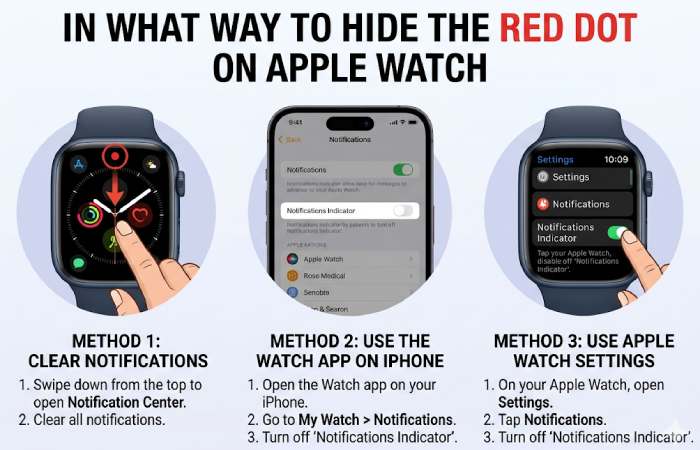
- Raise your wrist to rouse up the Apple Watch screen.
- Push the digital crown to the side of the watch.
- Select the Settings app from the app list or grid.
- Touch Notifications.
- Turn off the switch next to the notification light.
- Press the Digital Crown again to exit setup.
How Notifications Work On Apple Watch
| Aspect | How It Works | What You See on Apple Watch | Helpful Notes |
| Notification Source | Notifications mirror from your iPhone by default | Same alerts as iPhone | iPhone must be nearby unless cellular model |
| Delivery Method | Taptic vibration + sound (if enabled) | Tap on wrist, sound alert | Customizable per app |
| When iPhone Is Locked | Notification goes to Apple Watch | Alert appears on watch | Watch becomes primary screen |
| When iPhone Is Unlocked | Notification stays on iPhone | No alert on watch | Prevents duplicate alerts |
| Notification Indicator (Red Dot) | Appears when unread notifications exist | Red dot at top of watch face | Can be turned off |
| Grouped Notifications | Multiple alerts stack together | Scrollable notification list | Grouping can be automatic or by app |
| Interactive Notifications | Reply, dismiss, or act directly | Quick replies, buttons | Works with Messages, Mail, apps |
| Sensitive Notifications | Content hidden until you tap | “Tap to show notification” | Privacy feature |
| Clearing Notifications | Swipe left or tap Clear All | Removes alerts and red dot | Clears synced notifications |
| Notification History | Stored temporarily | Swipe down from watch face | Older alerts disappear over time |
| Focus / Do Not Disturb | Filters notifications | Fewer or no alerts shown | Syncs with iPhone Focus |
| App-Specific Settings | Customize per app | Different alert styles | Set via Watch app on iPhone |
| Emergency & Critical Alerts | Bypass silent modes | Loud sound + strong haptic | Cannot be fully disabled |
| Cellular Notifications | Delivered without iPhone nearby | Full alert support | Requires cellular plan |
Can You Turn It Off
| Step | Action |
| 1 | Open the Watch app on your iPhone |
| 2 | Tap Notifications |
| 3 | Find Notification Indicator |
| 4 | Toggle Off to disable the red dot |
| Result | The red dot will no longer appear on your watch face |
Red dot on an Apple Watch Series 7
| Item | Explanation |
| What it is | A red dot indicator at the top of the watch face. |
| Meaning | You have unread notifications waiting. |
| Where it appears | Top center of the watch face (above the time). |
| How to view alerts | Swipe down from the top to open Notification Center. |
| When it appears | When any new notification arrives (messages, calls, app alerts, etc.). |
| When it disappears | After you view or clear all notifications. |
| Can it be turned off? | Yes — via the Watch app > Notifications > Notification Indicator (toggle off). |
| Does it indicate a problem? | No — it’s normal and informational, not an error. |
| Works in Silent Mode? | Yes — it still appears even if sounds are off. |
How to Restart Apple Watch (Normal Method)
| Step | Action | What Happens |
| 1 | Press and hold the Side Button | Power menu appears |
| 2 | Release the Side Button | Options become selectable |
| 3 | Tap Power Off | Watch begins shutting down |
| 4 | Wait 10–15 seconds | Watch fully turns off |
| 5 | Press and hold the Side Button again | Apple logo appears |
| 6 | Release the button | Watch restarts normally |
How to Force Restart Apple Watch (If Frozen or Not Responding)
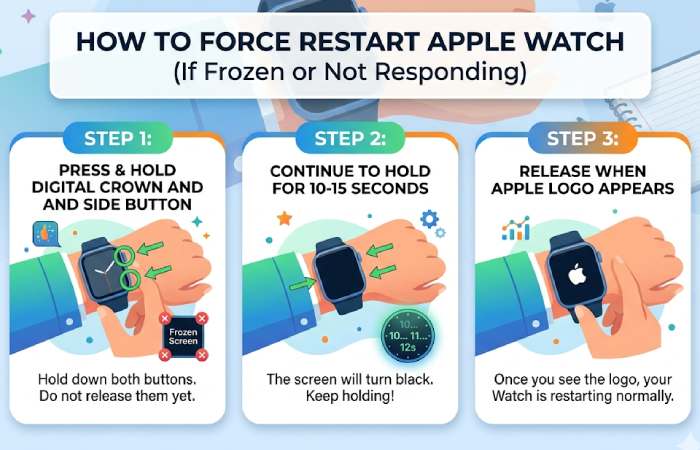
Use this only if your watch is unresponsive.
- Press and hold both:
- Side Button
- Digital Crown
- Keep holding for 10–15 seconds.
- Release both buttons when you see the Apple logo.
The watch will reboot automatically.
Optional: Hide or Turn Off the Red Dot
| Method | Steps | What It Does |
| Using Apple Watch | 1. Open Settings on Apple Watch2. Tap Notifications3. Turn off Notifications Indicator | Hides the red dot from the watch face while notifications continue normally |
| Using iPhone (Watch App) | 1. Open Watch app on iPhone2. Tap Notifications3. Toggle off Notifications Indicator | Removes the red dot indicator from Apple Watch |
| Viewing Notifications Instead | Swipe down from the top of the watch face to open Notification Center | Clears unread notifications, which automatically removes the red dot |
| Clearing Notifications | Open Notification Center → Scroll → Clear All | Red dot disappears once all notifications are read or cleared |
Status Icons and Symbols on Apple Watch
| Icon / Symbol | Meaning | Where You See It | What to Do |
| Red Dot | Unread notifications | Top center of watch face | Swipe down to view notifications |
| Green Phone | Active phone call | Watch face or Control Center | Tap to return to call |
| Yellow Walking Person | Workout in progress | Top of watch face | Tap to open Workout app |
| Blue Location Arrow | App using location | Top of watch face | Check location permissions |
| Headphones | Audio playing | Watch face | Tap to control playback |
| Red Battery Icon | Low battery | Watch face | Charge your Apple Watch |
| Green Lightning Bolt | Charging | Watch face | Normal behavior |
| Bell with Slash | Silent Mode on | Control Center | Tap to turn sound back on |
| Moon | Focus / Do Not Disturb on | Watch face & Control Center | Adjust Focus settings |
| Theater Masks | Theater Mode on | Control Center | Turn off to wake on raise |
| Airplane | Airplane Mode | Control Center | Tap to disable |
| Green Dots | Cellular signal | Control Center | Indicates network strength |
| Red X on Cellular | No cellular connection | Control Center | Check coverage |
| Lock | Apple Watch locked | Watch face | Enter passcode |
| Water Drop | Water Lock enabled | Control Center | Turn Digital Crown to unlock |
| Location Services | GPS active | Top of screen | Normal during navigation/workouts |
| Compass Arrow | Backtrack / Compass active | App screen | Use for navigation |
| Sync/Loading Icon | Data syncing | App screen | Wait for sync to finish |
Conclusion: Red Dot on an Apple Watch
The red dot on an Apple Watch is a simple yet powerful notification indicator designed to make sure you don’t miss important alerts. It acts as a visual reminder that unread notifications are waiting, helping users stay informed without constantly checking their watch. For many, this small dot improves awareness and ensures timely responses to messages, calls, and app alerts.