
Are you attempting to reach Minecraft Multiplayer and sync up your game progress across different devices? In this case, go to https //microsoft.com/link minecraft sign in. By linking your Microsoft account with Minecraft, it opens up your access to things such as cross-device play, cloud saves, cloud worlds, online multiplayer, and more cool features. Full Walk-through of How to Log in (With detailed step-by-step instructions, answers to errors and some helpful tips)
Table of Contents
What Is Microsoft.com/Link for Minecraft?
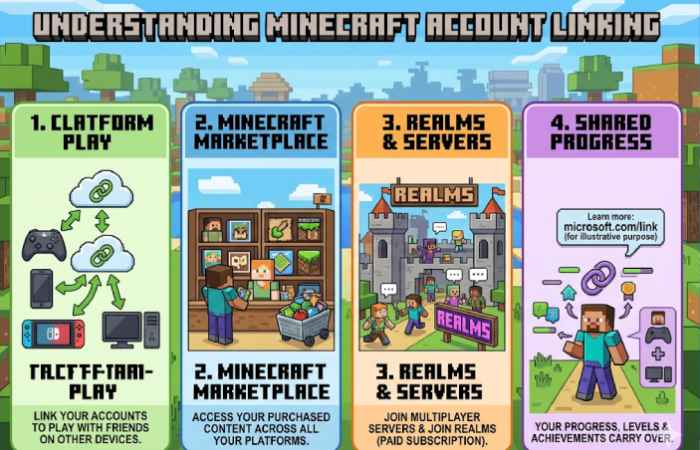
Microsoft.com/link is a web page hosted by Microsoft used to “link” (connect) your Minecraft game account on different platforms ( consoles, mobile and some PC setups ) to your Microsoft account.
Instead of typing in your username and password into the console (a very clunky and slow experience), you are instead given a code in the Minecraft menu. This code:
- Goes on the website microsoft.com/link (on another computer/mobile browser)
- Where you will sign into your Microsoft account,
- And type in the code from the game:
- Then and your game will remain connected and account logged in.
Why does Minecraft need Microsoft.com/Link?
This system remains used so the login process will be:
- Quicker (No need to type in pass-words on consoles)
- Safer (Logging in through the official Microsoft website)
- Cross-platform capable (The game will log into Xbox, Playstation, switch, PC and mobile)
What can you do after linking your Microsoft account?
If you link your Microsoft account you will get access to:
- Multiplayer servers online
- Play with friends who are on different platforms
- Cloud Saves and syncing
- Access to realms and the marketplace
- The friend list, achievements and other stats
How to Sign In Using Microsoft.com/Link
Step 1: Launch Minecraft
Go ahead and launch Minecraft on your device (Console, Mobile, or PC).
Step 2: Tap on the “Sign In with Microsoft” Button
You will be brought to a screen which has a link that looks like this:
“Sign in with a Microsoft account”
“Link account”
Step 3: get your code
The game should present you with an 8-digit code which looks like this:
1234 5678
Step 4: Go to the link page
You should navigate to this webpage on any other internet enabled device:
https://www.microsoft.com/link
Step 5: Type in your code
From there you need to log into your account and then punch in the code given in your game:
Log in with your Microsoft account
enter the code shown in your game: [Insert Code Here]
Step 6: Finish connection and have fun
If it all works then your game will restart or refresh itself and sign you inautomatically!
Device Specific Instructions
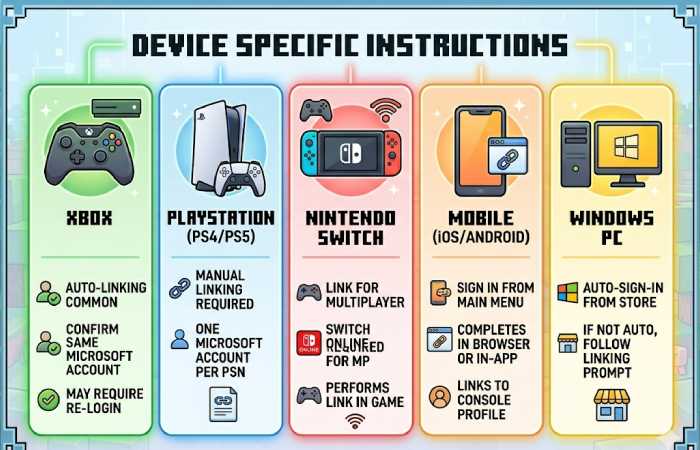
Xbox:
Often automatically linked, might require you to re-login. Make sure you are logged into the same Microsoft Account that your Xbox profile remains linked to.
PlayStation (PS4/PS5):
Needs to be manually linked at microsoft.com/link. You may only have one Microsoft account per PSN account.
Nintendo Switch:
The game must be linked so you may play multiplayer. Nintendo Switch Online membership may be required.
Mobile (iOS/Android):
From the main menu, press the Sign In button and this should open up a browser to complete the login and link it to your console profile, or it may provide an in-app login.
Windows PC:
You should automatically be signed in once you open it from the Microsoft Store, but if for some reason you aren’t, you will be prompted to manually link it using the above instructions.
Benefits of Linking a Microsoft Account to Minecraft
| Feature | Without Linking | With Linking |
| Multiplayer | No | Yes |
| Cross-Platform Play | No | Yes |
| Cloud Saves | Limited | Full |
| Friends System | No | Yes |
| Realms Access | No | Yes |
Common Problems & Fixes
- Code Not Working
This can happen if:
code has expired.codes are only valid for about 15 minutes- start sign-in process over, generate a new code.
- Already Linked Error
If your account remains already tied to a different profile:
use the original Microsoft account- or make a new one for it.
- Login Loop / Stuck Screen
This is typically due to- Clear browser cache- Incognito Mode-Different Browser
- Multiplayer Not Working After Login
This could be due to:- xbox privacy settings-internet-your account age restrictions
Competitor Comparison (USA)
| Platform | Base Price | Online Requirement | Resource Link |
| Minecraft (PC) | $29.99 | No (Single Player) | https://www.minecraft.net |
| Minecraft (Xbox) | $19.99+ | Xbox Live Required | https://www.xbox.com |
| Minecraft (PlayStation) | $19.99+ | PS Plus Required | https://www.playstation.com |
| Minecraft (Switch) | $29.99 | Nintendo Online Required | https://www.nintendo.com |
| Minecraft Mobile | $6.99 | Optional | https://play.google.com |
Best Practices for Smooth Sign-In
- Please be consistent with the one Microsoft account across all devices.
- Please use one, and only one, and store all login details securely.
- Don’t sign in and out so often.
- Turn on 2-step authentication for maximum security.
Common Mistakes to Avoid When Using Microsoft.com/Link for Minecraft
| Mistake | What Happens | Why It Happens | How to Fix / Avoid |
| Expired Code is entered. | Login failure or error | The code will expire in about 10-15 minutes. | Sign in again and get a new code instantly |
| Incorrect Microsoft account is used. | Lost progress, purchases, or friends | It doesn’t look right to sign into more than one account at a time. | Always use your main gamer tag. |
| The incorrect console profile remains linked. | Account mismatches | I was logged in under another user on my console. | Confirm your profile before linking |
| Permanently linked console account is being re-linked. | Error message saying “Already Linked” | Certain platforms (like PlayStation) have a “only one time link”. | Use the account initially used to link, or make a new account to link |
| The user doesn’t check their internet connection. | Login page failing to load or verify | Connection is slow or not reliable. | Make sure your WiFi/mobile connection is steady. |
| Minecraft hasn’t remained updated. | Missing or buggy login button | Older versions of an app may not have new authentication. | Make sure you have the latest version of Minecraft. |
| Pop-ups and cookies have remained blocked. | Endless login loop or login page failure to load | Browser restrictions are interfering with the authentication. | Enable cookies and allow pop-up windows to pop up. |
| The user has used public/shared device. | Security vulnerabilities or account leak | Accidentally saved my credentials somewhere. | Use private mode/incognito and sign out after linking. |
| User did not check the privacy settings. | Multiplayer failure after logging in | Xbox privacy settings may be hiding content. | Change your settings so that multiplayer remains enabled and so that friends remain allowed to join |
FAQs
What is microsoft.com/link in Minecraft?
It is a secure page where you type in a code in order to link your Microsoft account to Minecraft.
I can’t log into Minecraft! Why?
Usually an expired code, wrong account, or network problems.
Can I unlink my Microsoft account?
Not directly, and depending on the console(Playstation) your Microsoft account cannot remain unlinked ever again.
Is a Microsoft account mandatory for Minecraft?
Yes, you require a Microsoft account for multiplayer, cross-play and many other online features in Minecraft.
How long is the code valid for?
Generally around 10-15 minutes.
Final Conclusion
If you want to use the complete range of the Minecraft online functions like playing across platforms, synchronizing progress etc., you just have to link your Microsoft account using https //microsoft.com/link minecraft sign in. Go step by step, watch out for common errors, and within a few minutes you’ll be online.